Register, clean up and connect
Today we will be entering objects (and organizations) into the Omeka S collection management system. All information and images are public by default in this demo environment, mainly because the metadata and images will be used for demo-purposes. Therefore, the data must be of quality and comply with laws and regulations, including copyright and privacy. After the demo-day, all objects will be set to private.
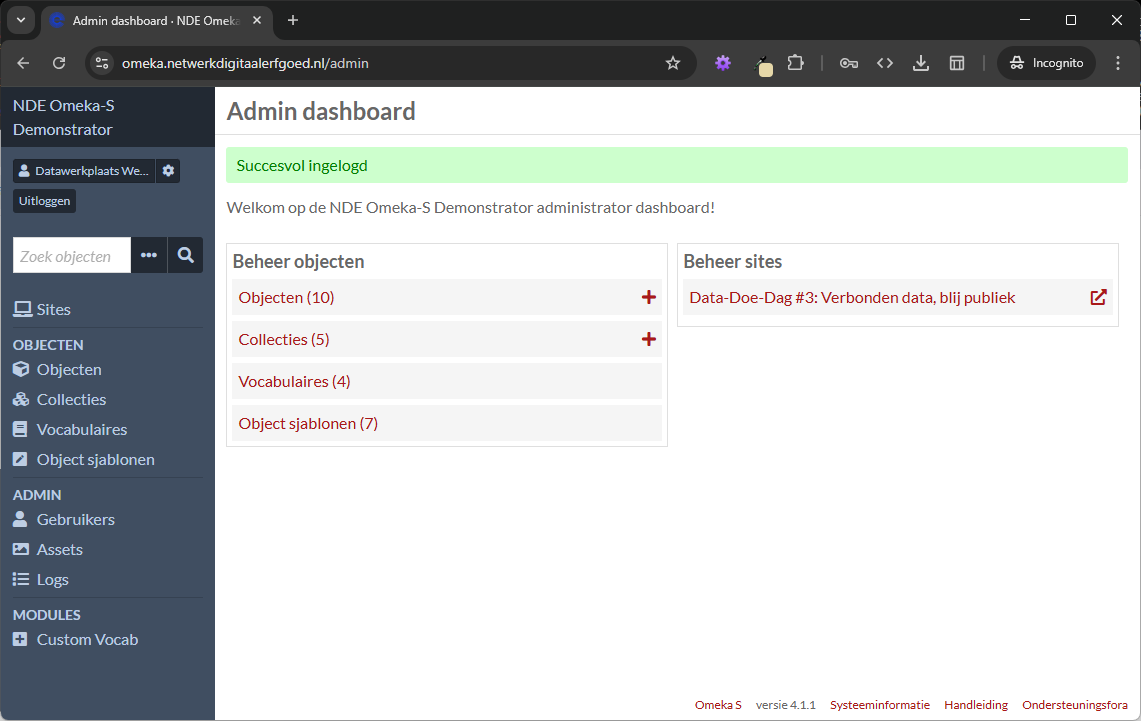
Access the Omeka S admin area
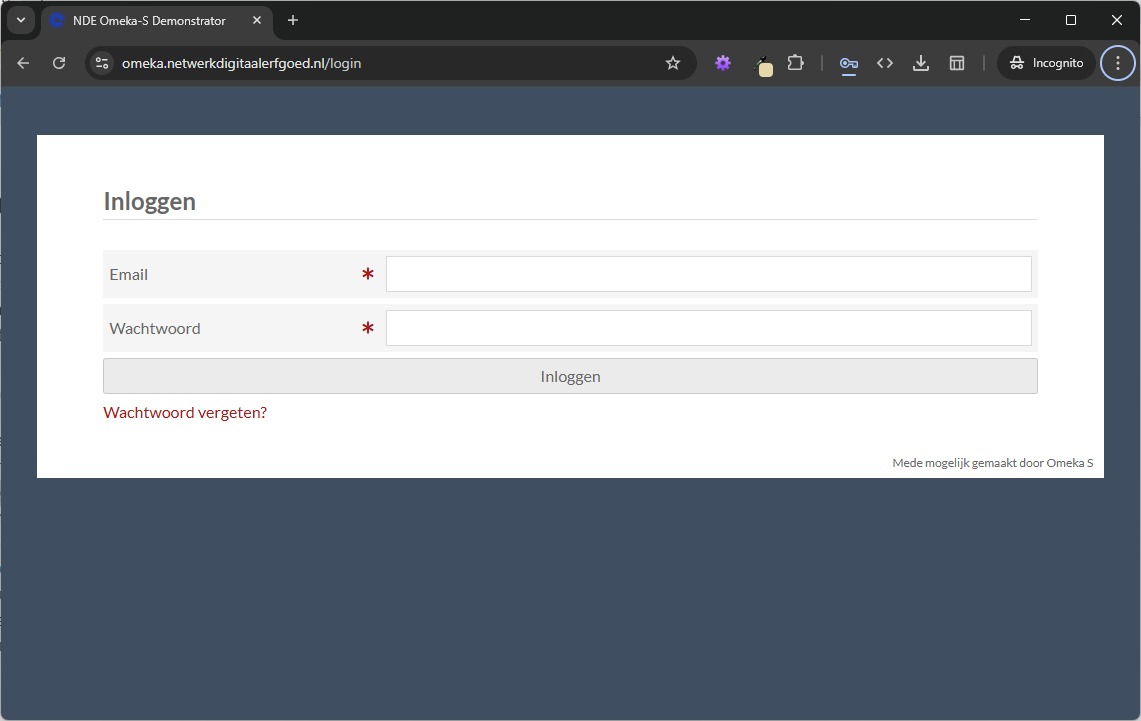
A login page—consisting of an email address and password—has been set up for the demo. You will receive this information from the workshop facilitator.
Entry forms per object type
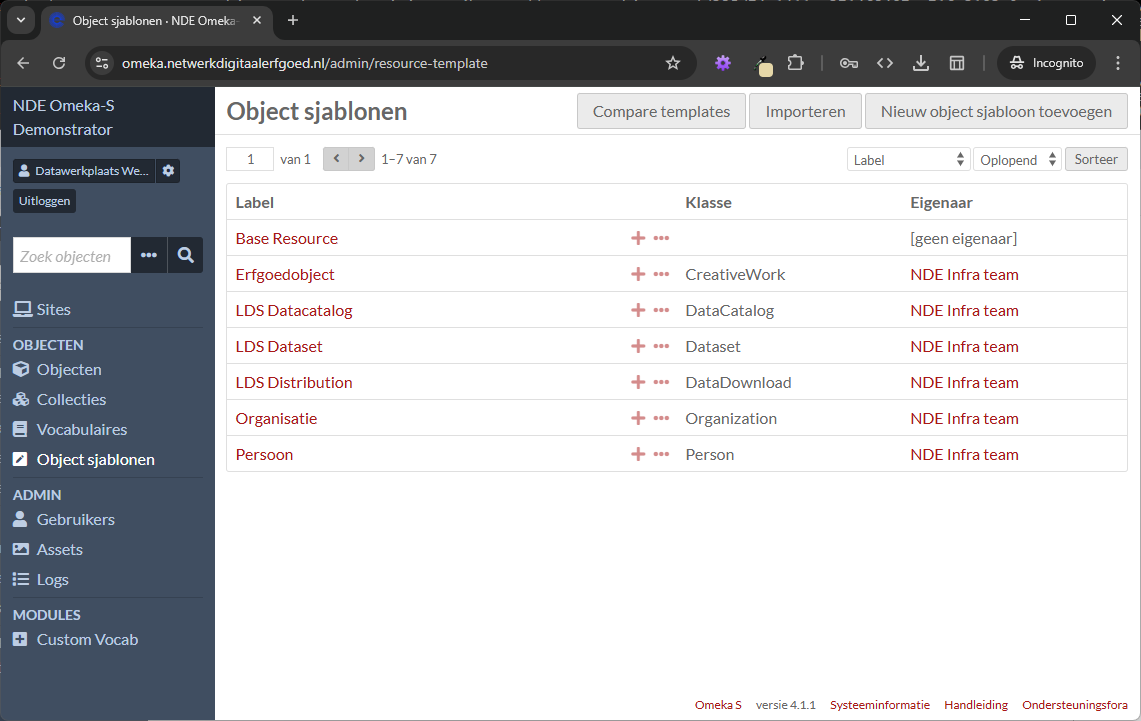
A number of so-called Resource templates have been defined for the demo. These define the "forms" for each type of object that can be entered. The most important ones for today: Heritage object, Organization, and Person. The fields come from the available Vocabularies, specifically from schema.org.
The resource templates correspond as much as possible in terms of names and explanation to the Collection Information for the Public Data Profile (in Dutch) and in terms of linked data classes and properties with Schema.org Application Profile for NDE (SCHEMA-AP-NDE).
Entering objects in Omeka S
On the Items page, you will see the Add Item button at the top right.
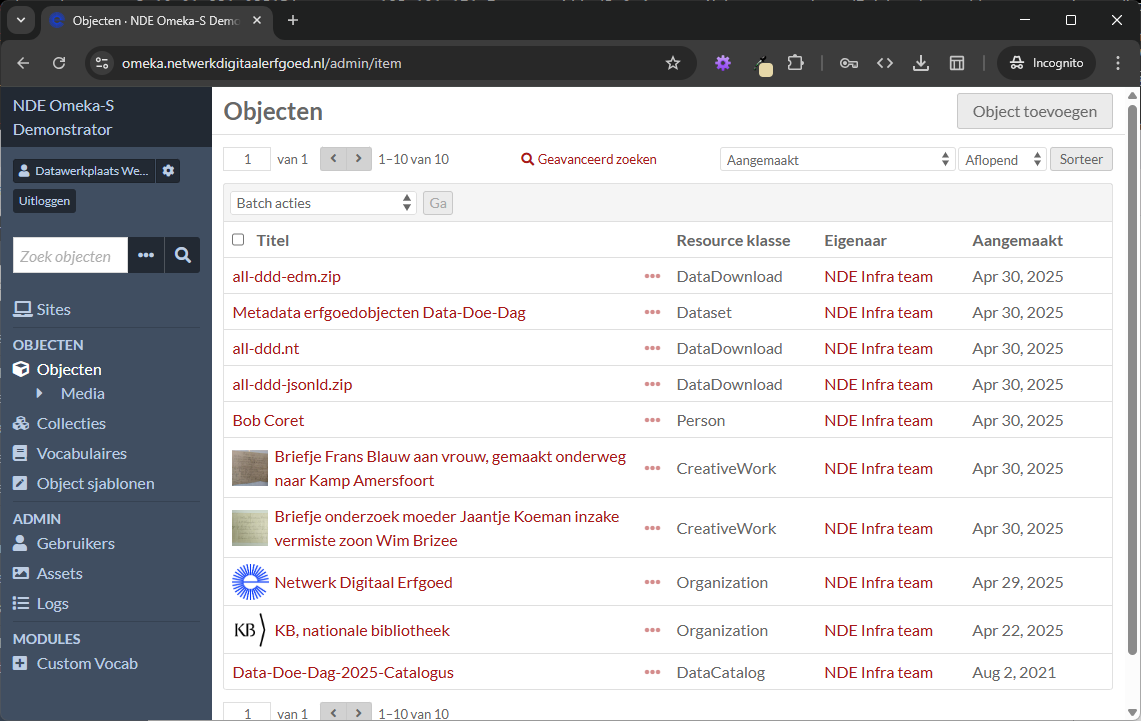
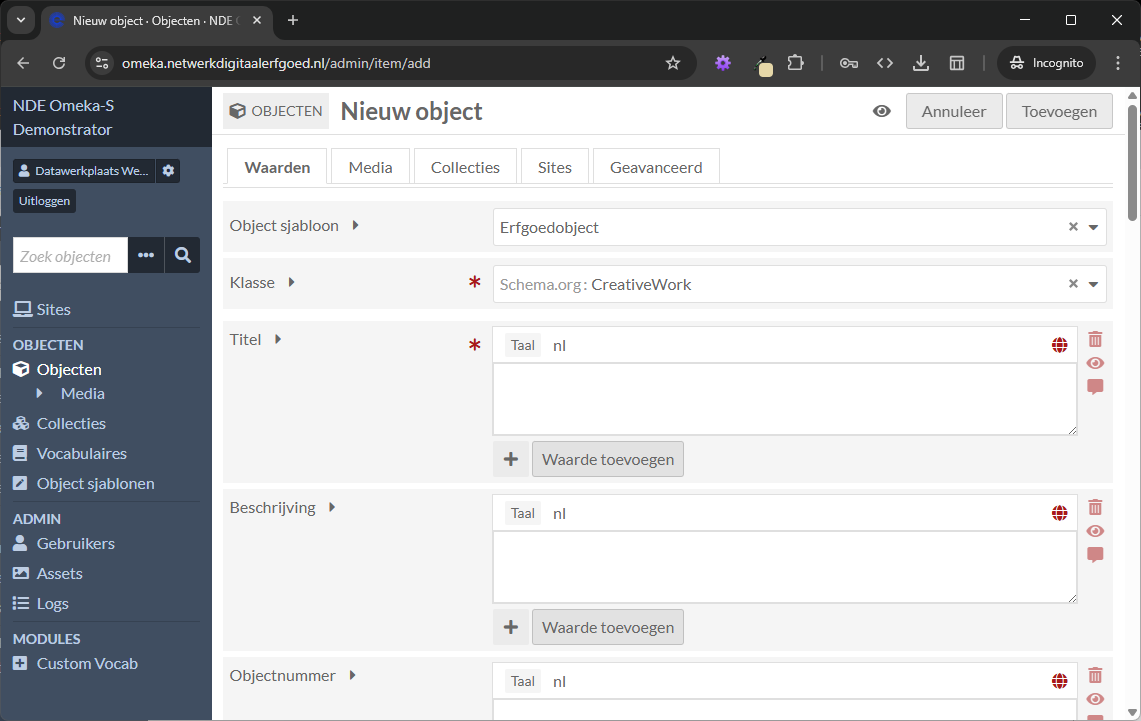
You'll see several tabs at the top. Start on the Values tab. The information on the Collection and Sites tabs is automatically pre-populated (in this demo environment). The Media tab is for adding images; we'll get to that later.
The first field on the form determines which form you want to use. Heritage Object is pre-populated, but you can also enter Organization or Person. The label for each field is shown in the left column. Clicking the triangle next to the label provides more information. A red asterisk indicates a required field.
You can specify the language for most fields; the default language is en. For most fields, you can also add multiple values (click the plus button); this way, you can add both a English and an Dutch value to the field.
The default input is Text; it can also be a Date field. Some fields allow you to enter a URI, which is an internet address and label. Some fields have a drop-down list, and some fields are even linked to specific term sources via the NDE Network of Terms. After selecting a term source, you will see an input field with a book in it. Enter a term here, and it will be looked up in the selected thesaurus via the NDE Network of Terms and presented in a drop-down list; then select the desired term (the internet address and label will be displayed and saved).
You can also link an Omeka iteam to some fields, for example the repository or rights holder. Please note that here you can only select an organization that has been entered as an Omeka item. So: either you start by entering the Organization (so before you enter the Heritage object), or you enter the Heritage object (without a repository), enter the repository as an Organization, then edit the Heritage object and select the Organization you just entered.
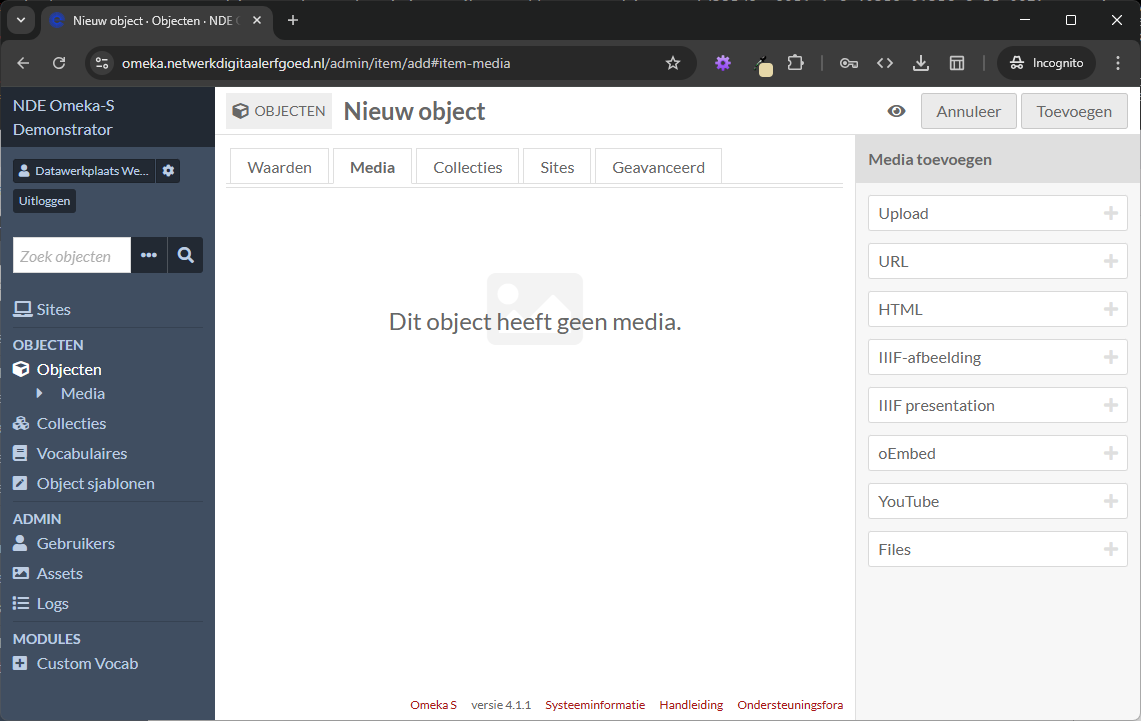
Add images to the object
For each object, you can add media. The easiest way to do this is to use the upload option, which simply points to the file on your computer. You can also add images from the internet. All media is also directly available through IIIF.